Organization Hierarchy
How to configure, import, and manage your organizational hierarchy for Job Metrics reporting
Organization Hierarchy
The Job Metrics dashboard uses an organizational hierarchy to group and filter job data by institutional structure — such as colleges, departments, labs, or business units. This enables administrators to view resource usage broken down by organizational unit and generate meaningful reports.
Not Populated by the Ingestor:
The organizational hierarchy is not populated by the Slurm History Ingestor. It is institution-specific metadata that must be configured separately via the Admin dashboard or CSV import.
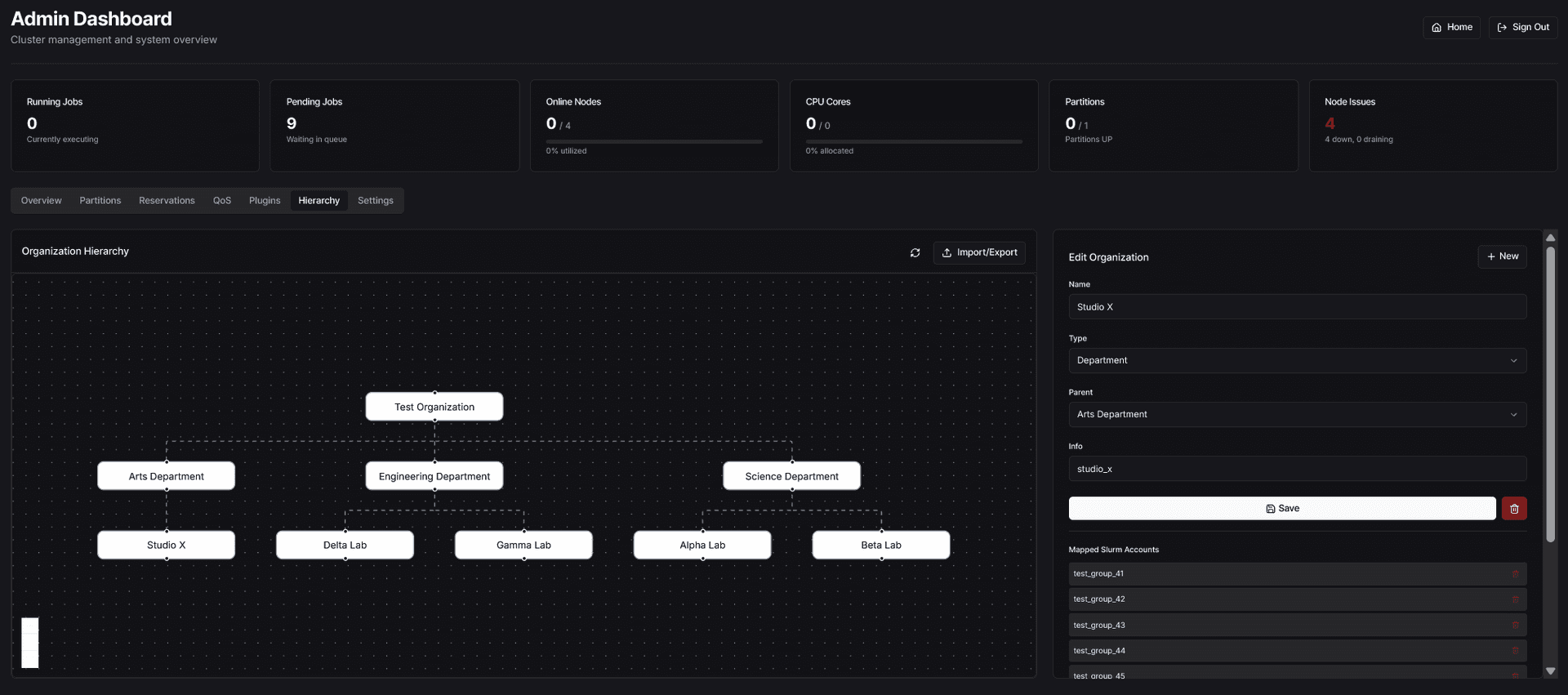
Overview
The hierarchy system consists of two data models:
- Organizations: A tree of organizational units (e.g., University → College → Department → Lab)
- Account Mappings: Links between Slurm accounts and organizations, so job data can be attributed to the correct unit
Once configured, the hierarchy powers:
- "By College" / "By Department" charts in the Job Metrics dashboard
- Hierarchy flow visualization showing your organizational structure
- Filtered reports scoped to specific organizational units
- Time-series charts grouped by hierarchy level
Configuring Hierarchy Labels
The hierarchy labels define what your organizational levels are called in the dashboard. Configure these in your .env file:
# Hierarchy labels (customize for your organization)
NEXT_PUBLIC_HIERARCHY_LEVEL1_LABEL="College"
NEXT_PUBLIC_HIERARCHY_LEVEL2_LABEL="Department"
- Level 1 (e.g., "College", "Division", "School"): Top-level organizational unit
- Level 2 (e.g., "Department", "Group", "Lab"): Sub-organizational unit
Example Configurations
Academic Institution:
NEXT_PUBLIC_HIERARCHY_LEVEL1_LABEL="College"
NEXT_PUBLIC_HIERARCHY_LEVEL2_LABEL="Department"
Research Organization:
NEXT_PUBLIC_HIERARCHY_LEVEL1_LABEL="Division"
NEXT_PUBLIC_HIERARCHY_LEVEL2_LABEL="Research Group"
Corporate Environment:
NEXT_PUBLIC_HIERARCHY_LEVEL1_LABEL="Business Unit"
NEXT_PUBLIC_HIERARCHY_LEVEL2_LABEL="Team"
Managing Hierarchy via Admin Page
The hierarchy is managed through the Admin dashboard at the Hierarchy tab (/admin → Hierarchy).
The Hierarchy View
The Admin hierarchy page has two main panels:
- Organization Graph (left): An interactive flow diagram showing the full organizational tree
- Details Panel (right): A form for creating, editing, or deleting organizations and managing their Slurm account mappings
Creating Organizations
- Navigate to the Admin dashboard and select the Hierarchy tab
- Click + New in the details panel
- Fill in the form:
- Name: Display name for the organization (e.g., "College of Engineering")
- Type: The hierarchy level — Root, College/Level 1, Department/Level 2, or Group
- Parent: Select the parent organization (or "None" for root-level)
- Info: Optional code or description (e.g., "ENG")
- Click Save
Editing Organizations
- Click on any node in the hierarchy graph
- The details panel will populate with that organization's data
- Modify the fields as needed and click Save
Deleting Organizations
- Select the organization in the graph
- Click the delete button (trash icon) next to the Save button
Delete Restrictions:
You cannot delete an organization that has child organizations. Remove or reassign children first.
Mapping Slurm Accounts
Each organization can have Slurm accounts mapped to it. When a job runs under a mapped account, it is attributed to that organization in reports.
- Select an organization in the graph
- Scroll down to Mapped Slurm Accounts in the details panel
- Use the Add account... dropdown to map a Slurm account
- To remove a mapping, click the trash icon next to the account name
Account Source:
The list of available Slurm accounts is populated automatically by the Slurm History Ingestor as it syncs job data.
Import & Export
For bulk setup or migration, you can import and export hierarchy data as CSV files. Click the Import/Export button in the hierarchy view header to open the import/export dialog.
CSV Format: Hierarchy
The hierarchy CSV defines organizations and their parent-child relationships.
code,name,parent_code
"test_org","Test Organization",""
"dept_science","Science Department","test_org"
"dept_engineering","Engineering Department","test_org"
"dept_arts","Arts Department","test_org"
"lab_alpha","Alpha Lab","dept_science"
"lab_beta","Beta Lab","dept_science"
"lab_gamma","Gamma Lab","dept_engineering"
"lab_delta","Delta Lab","dept_engineering"
"studio_x","Studio X","dept_arts"
| Column | Description |
|---|---|
code | Unique identifier for the organization |
name | Display name |
parent_code | Code of the parent organization (empty string for root) |
CSV Format: Account Mappings
The mappings CSV links Slurm accounts to organizations.
slurm_account,org_code
"test_group_1","lab_alpha"
"test_group_2","lab_alpha"
"test_group_11","lab_beta"
"test_group_21","lab_gamma"
"test_group_31","lab_delta"
"test_group_41","studio_x"
| Column | Description |
|---|---|
slurm_account | The Slurm account name |
org_code | The code of the organization to map it to |
Importing
- Click Import/Export in the hierarchy view
- Upload your Hierarchy Data CSV first (this creates the organizations)
- Then upload your Account Mappings CSV (this links Slurm accounts to organizations)
Import Order Matters:
Always import the hierarchy CSV before the mappings CSV. Account mappings reference organization codes that must already exist.
Exporting
Click the Download button next to either Hierarchy Data or Account Mappings to export the current data as a CSV file. This is useful for:
- Backing up your hierarchy before making changes
- Migrating hierarchy data to another dashboard instance
- Reviewing the current structure in a spreadsheet
Clearing All Data
The import/export dialog includes a Clear All Data button that removes all organizations and account mappings. This is useful when re-importing a revised hierarchy from scratch.
Destructive Action:
Clearing all hierarchy data cannot be undone. Export your data first if you may need it later.
Example Files:
Example CSV files (test_hierarchy.csv and test_mappings.csv) are available in the infra/ folder of the dashboard repository to help you get started.
Hierarchy Flow Visualization
The hierarchy flow component provides an interactive diagram showing your cluster's organizational structure. This visualization appears in both the Admin hierarchy tab and the Job Metrics dashboard.
The flow diagram is interactive, allowing you to:
- Pan and zoom to navigate large hierarchies
- Click on nodes to view details and account mappings
- Visualize the full organizational tree at a glance
Troubleshooting
"By College" / "By Department" charts are empty:
- Ensure organizations and account mappings have been imported or created
- Verify that Slurm accounts used by jobs are mapped to organizations
Import fails:
- Check that the CSV format matches the expected columns exactly
- Ensure hierarchy CSV is imported before mappings CSV
- Verify there are no duplicate
codevalues in the hierarchy CSV
Cannot delete an organization:
- The organization likely has child organizations — remove or reassign them first
Slurm accounts not showing in the mapping dropdown:
- The Slurm History Ingestor needs to have synced at least once to populate the accounts list
- Verify the ingestor is running and has completed a sync cycle